

Setup Guide for Scrubby
Scrubby integrates HubSpot contacts with Scrubby verification workflow, allowing users to:
- Import HubSpot contacts into Scrubby for email/contact verification.
- Run verification checks on imported records.
- Write verification results back to HubSpot contact properties.
Install the App
- 1Log in to your Scrubby account.
- 2Navigate to Keep Your CRM Clean.
- 3Locate the HubSpot integration card.
- 4Click Connect HubSpot.
- 5Select the HubSpot account you want to connect.
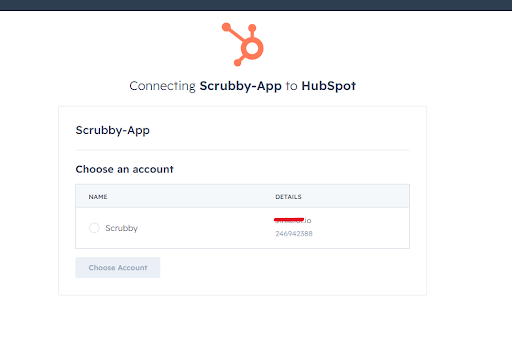
- 6Click Choose Account.
- 7Review the requested permissions. Scrubby may request access to read HubSpot contacts, read contact properties, and write verification results back to contact properties when enabled.
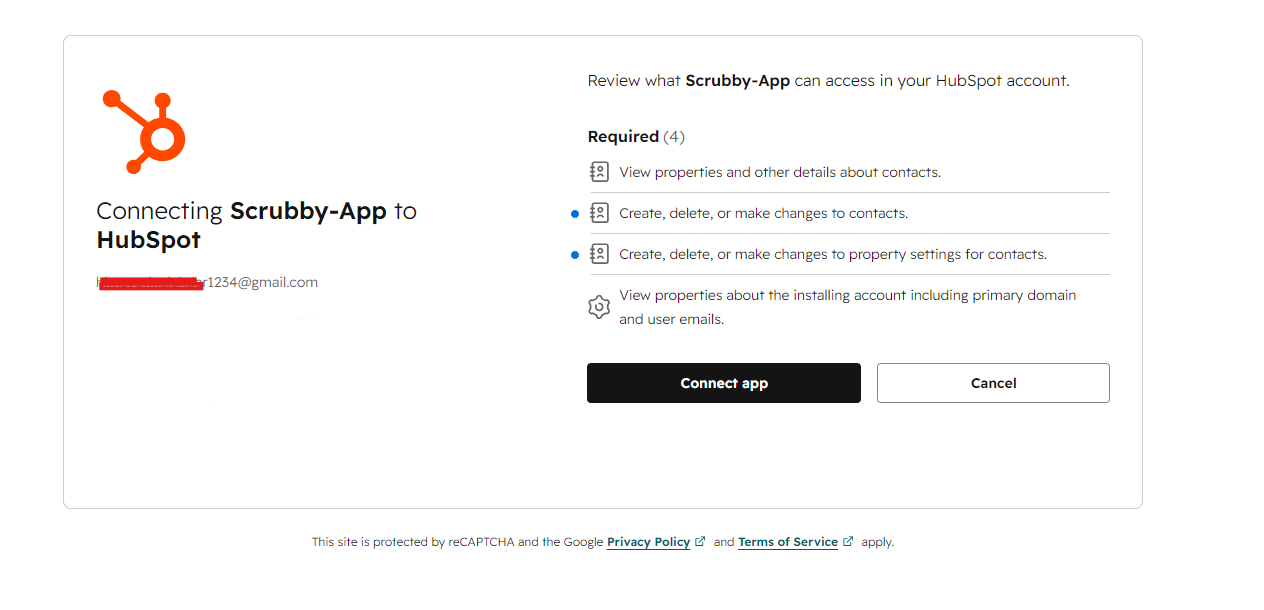
- 8Click Connect app.
- 9After authorization, you will be redirected back to Scrubby. The HubSpot integration will now show as connected.
Disconnect the App
Note: If you disconnect HubSpot from Scrubby, Scrubby will no longer be able to import HubSpot contacts or write verification results back to HubSpot. Existing verification results already written to HubSpot will remain on your HubSpot records unless manually removed.
- 1Log in to Scrubby.
- 2Navigate to Keep Your CRM Clean.
- 3Locate the HubSpot integration card.
- 4Click Disconnect.
- 5The HubSpot integration will now disconnect.